Fill out the CISIA Student Area registration form with:
- Your personal data (name, surname, date and place of birth)
- Your tax code (if you do not have a tax code, please flag the “I do not have a tax code” box)
- The personal email address you usually use and where you wish to receive updates and important notices (it must not be an institutional or someone else’s email)
- The OTHER option in the Select school field
- Your mobile phone number with the international dialing code (starting with 00)
- Your profile picture (passport photo style)
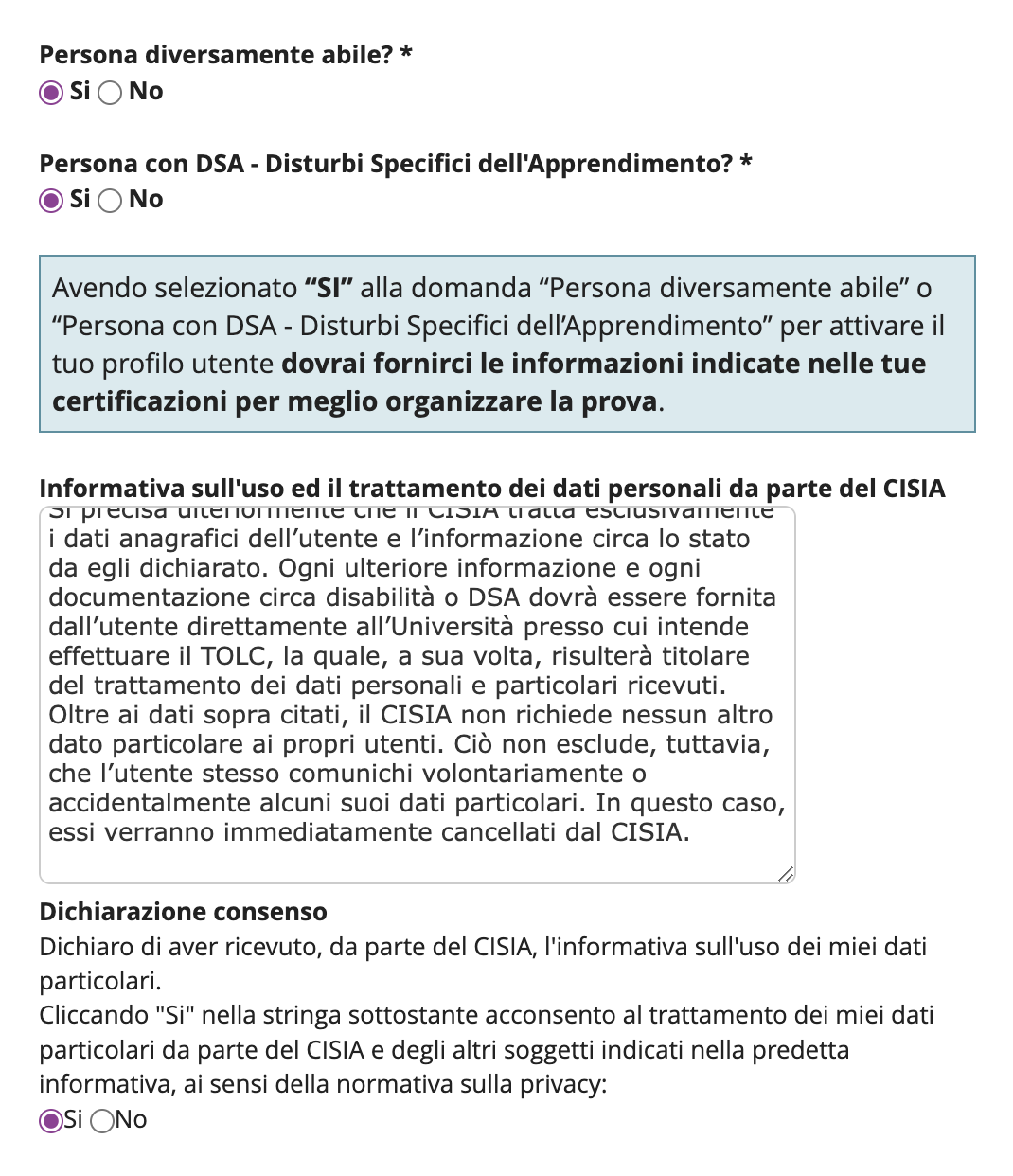
After filling out the registration form, please indicate if you have a disability or learning difficulties: you will be able to upload your certifications.
Read and accept the Information on the use of personal data and the Information on how CISIA processes special categories of personal data related to disability or LD. At the end of the procedure, make sure that all the information is correct. Double check the email address entered, since it will be used to send you all the updates and notices.
After clicking Confirmcheck your email inbox! We will send you an email with a link to the page where you can upload your certifications:
- Fill out the form with your personal data
- Choose the learning support tools you want to request for taking your TOLC
- Upload the required certifications and documents
- Click on the button
activate as a user with LD/disability
You can upload certifications in the following formats: jpg, png, gif, jpeg, pdf. If the documents are too large for the system, try to reduce their size and/or upload only the most important pages.
For the identification document, the allowed formats are jpg, png, gif, and jpeg
Certifications
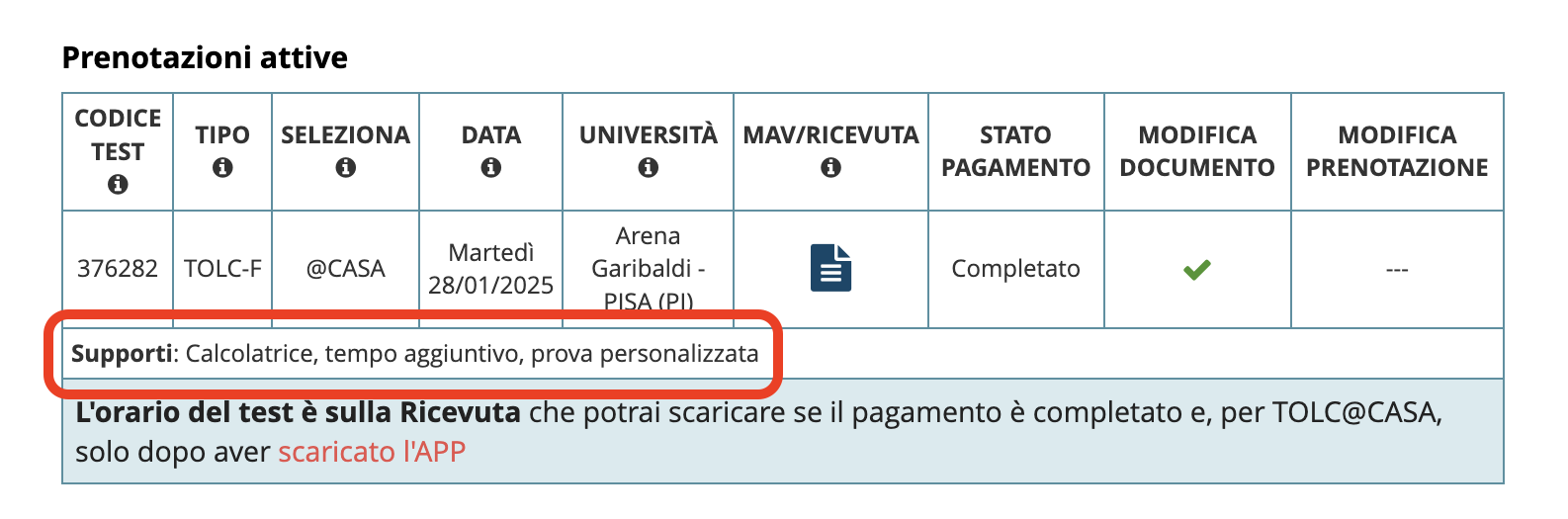
It is the university that evaluates your certifications and the learning support tools you requested to take the TOLC. You will be able to view the supports assigned to you by the day before the test in your CISIA Student Area, under the Manage Bookings section, in the Current Bookings table.
If you do not receive any response, contact the Inclusion Services Office of the university that manages your test.
If your certifications have expired, contact the Inclusion Services Office of the university that manages your TOLC.
Updating your certifications
You can update your certifications by the TOLC booking deadline indicated in the Calendar:
- Log in to your CISIA Student Area and click
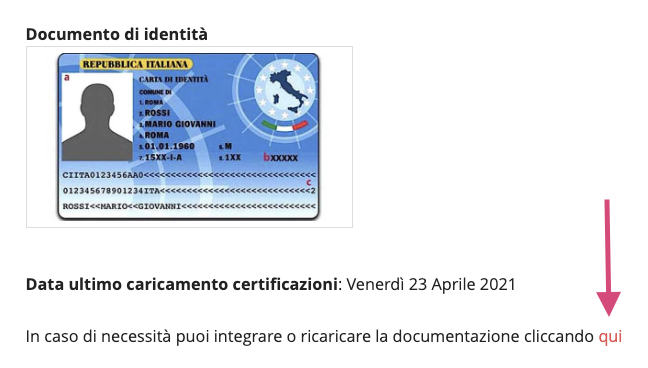
LD or disability documentsfrom the menu on the left - Read your data summary and upload your certifications or delete already uploaded files by clicking on the link as shown in the image