The test entry time is stated on your Payment and Enrolment Receipt
Follow these steps to start the TOLC@HOME:
- Open Mozilla Firefox, Google Chrome or Microsoft Edge on your laptop
- Go to accesso.testcisia.it
- Click on
@HOME - Click on
TOLC - Log in with your email (or tax code) and your password
- Click on the test you want to take so that the CONFIRM button shows up
You will be able to click on the confirm button only from ten minutes before the starting time of your test. Until then you will see a countdown. If necessary, refresh the page to update the countdown.
- Click on the
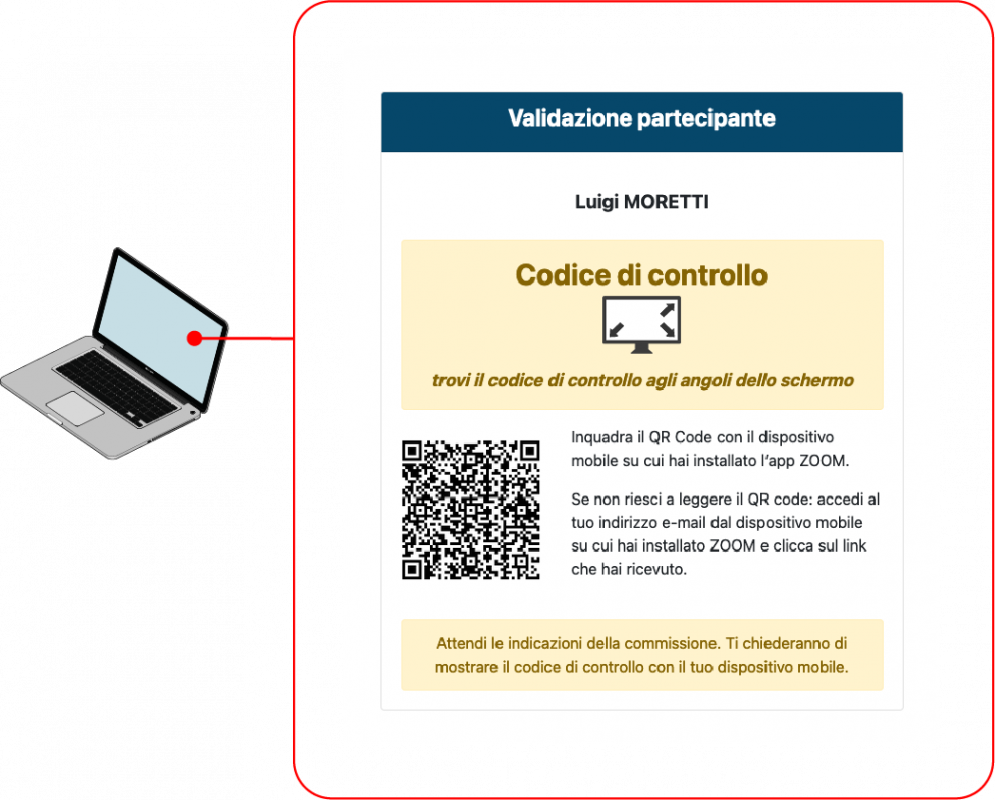
confirmbutton to allow the HORIZON APP to be opened automatically - A screen with a QR code will appear: scan the QR code with the camera of your mobile device to access the virtual room on WEBEX. Instead of using the QR code, you can follow the link that you receive via email the day of the test
- In the corners of the QR code page, you will see a control code: show it to the supervisors when asked