To join the virtual room on the day of the test, you must download and install the latest version of Webex on your mobile device
It is important, in order to use the app correctly, not to create and/or use personal accounts. .
How to join the virtual room
There are two ways to join:
- via QR Code displayed on your laptop screen
- via the link sent on the day of the test to the email address provided during registration.
To join the virtual room, scan the QR code with your mobile device on which you have downloaded the latest version of Webex.
On your laptop screen, in addition to the QR code, a control code will be displayed. You will need to show this code to the supervisors during the identification process using your mobile device camera.
Throughout the test:
- The microphone must be on
- You must remain in absolute silence to avoid disturbing the rest of the room
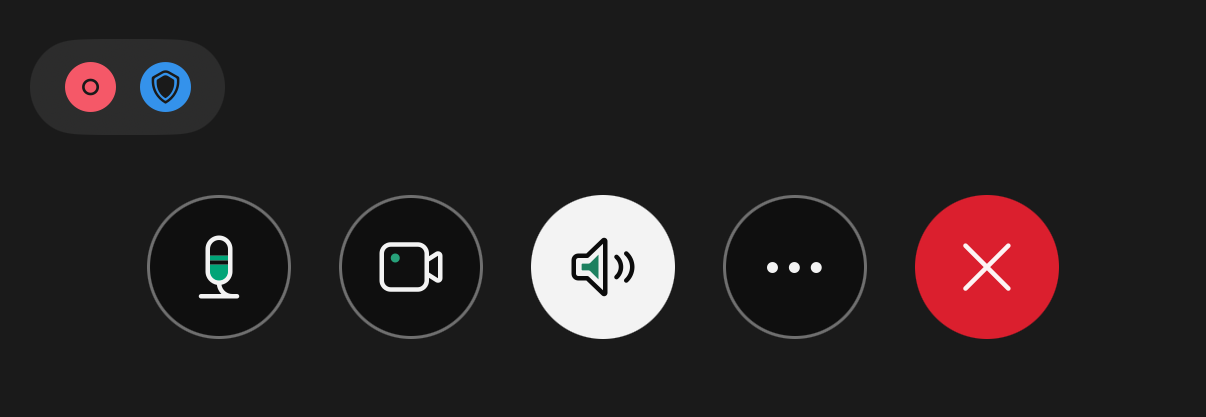
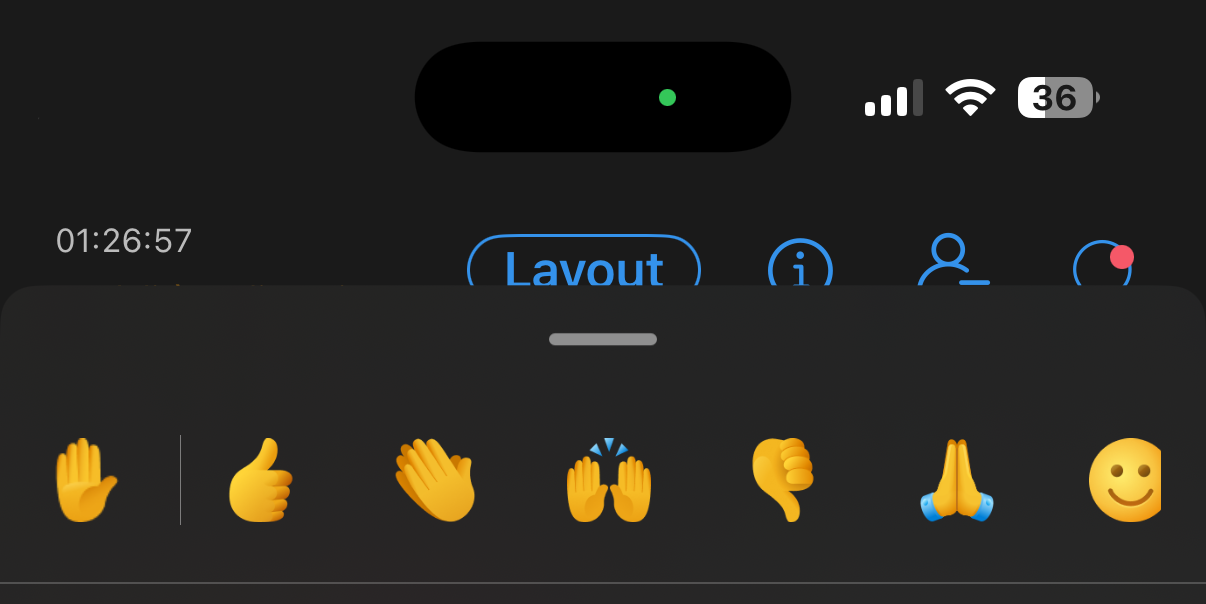
If you need to, you can communicate with the supervisors by clicking on the three dots at the bottom of the screen and then on the hand at the top left.
The session will be recorded.
Webex
When the Webex application opens, you must make sure that the audio is on:
On iOS mobile devices
You will see these notifications:
- This website wants to open another application. Tap Allow
- Webex Would Like to Access the Microphone. Tap
Allow - Webex Would Like to Access the Camera. Tap
Allow - tap
Join meeting - wait until the host admits you to the meeting
On Android mobile devices
You will see these notifications:
- Continue to Webex? This site wants to open the Webex app. Tap
Continue - Allow Webex to record audio. Tap
While using the app - Allow Webex to find, connect to and determine the relative position of nearby devices. Tap
Allow - Allow Webex to make and manage phone calls. Tap
Allow - tap
Join meeting - wait until the host admits you to the meeting
Your audio is on when you see the mic icon at the bottom left of the screen.
Your camera is on when you see the cam icon at the bottom left of the screen.

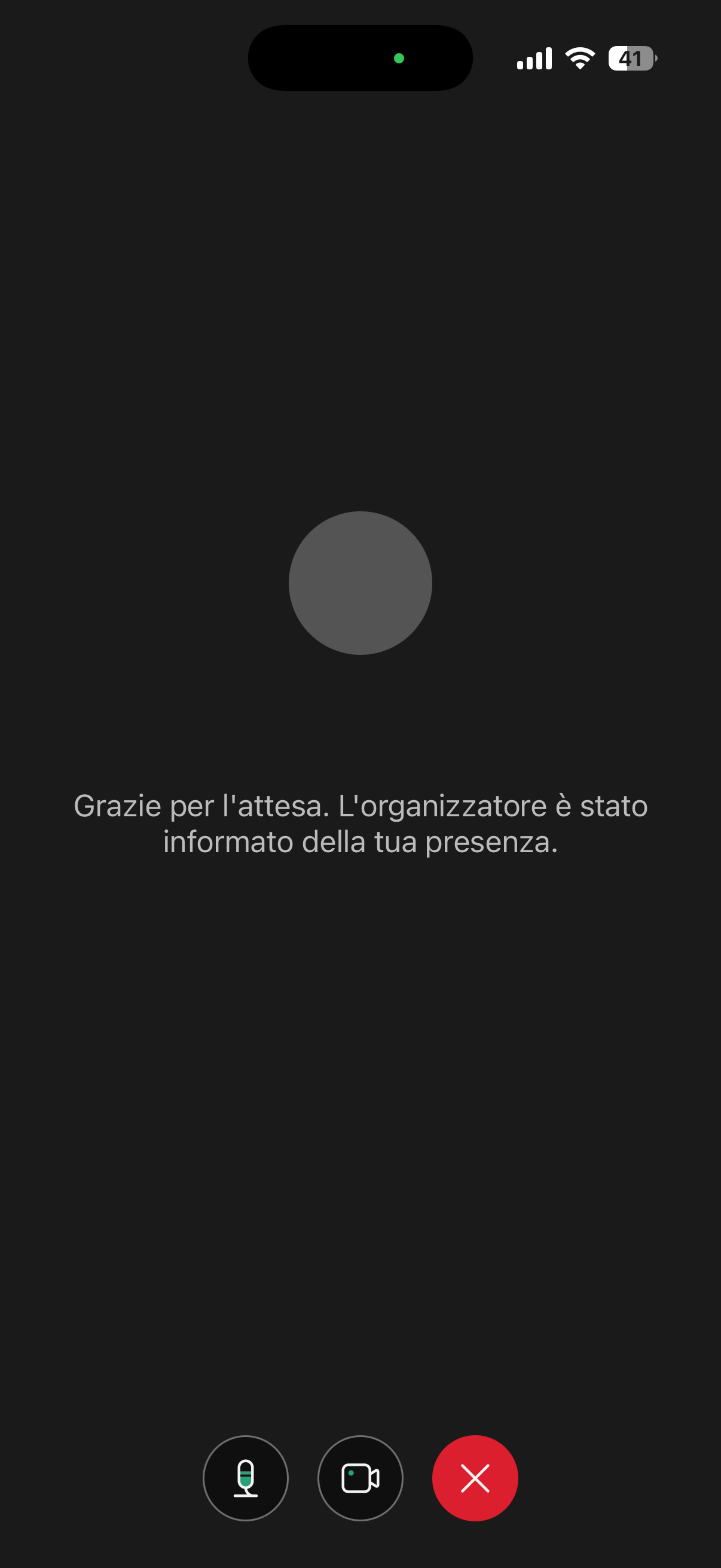
If you see this screen, you are in the waiting room and the test supervisors will let you in shortly. Please wait: the identification phase takes time.
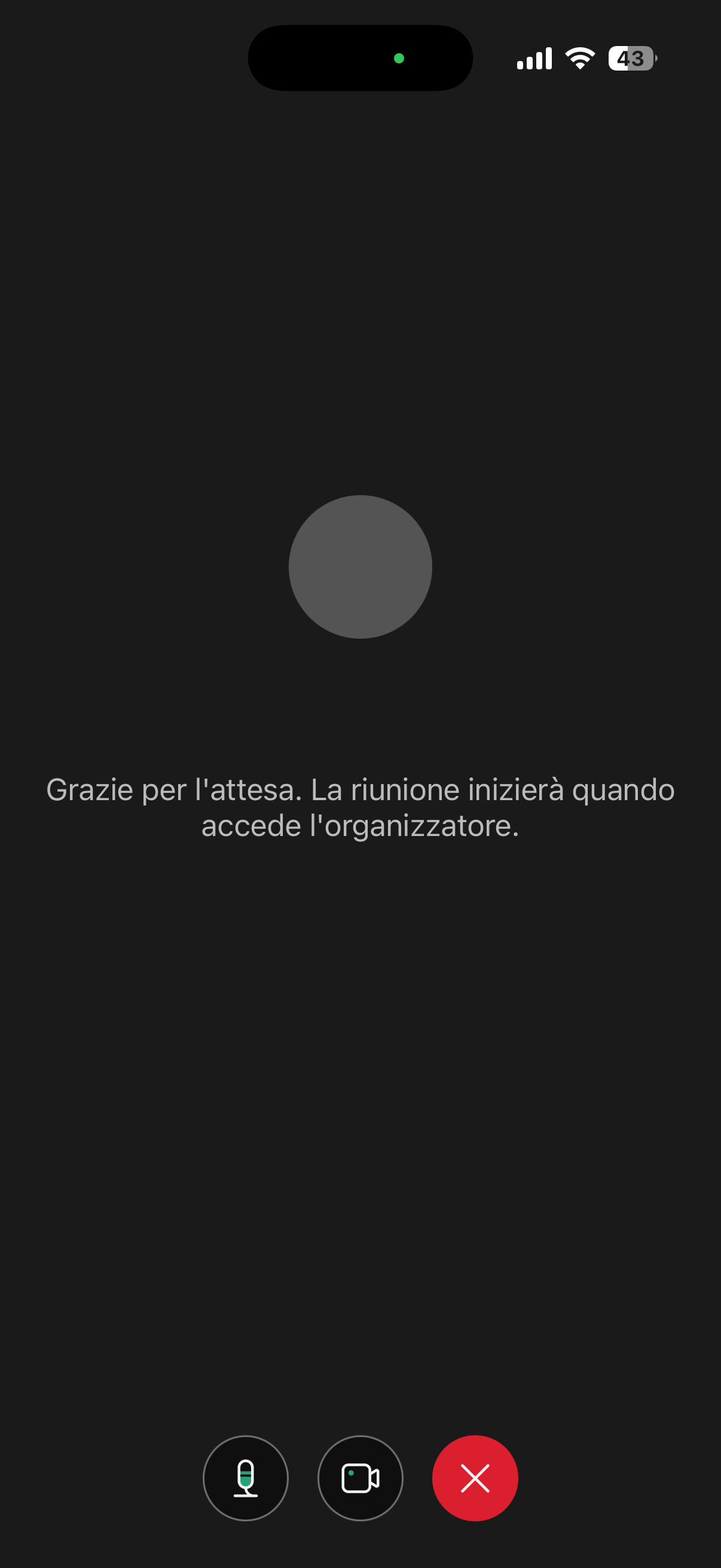
If you see this screen, it means that the meeting has not started yet; wait for the test supervisors to start it.
The breakout sessions
In case of technical problems during the test, the supervisors may temporarily transfer you to a breakout session to communicate without disturbing those taking the test in the main virtual room:
To join:
- when you see Breakout sessions have started, tap Join now
To leave:
- if the supervisors end the breakout session, you will automatically return to the main virtual room
- If you see the message Return to main meeting, tap
Return - Alternatively, you can tap the red button at the bottom and select
Leave session.
For more info, check the page Breakout sessions in Webex.